
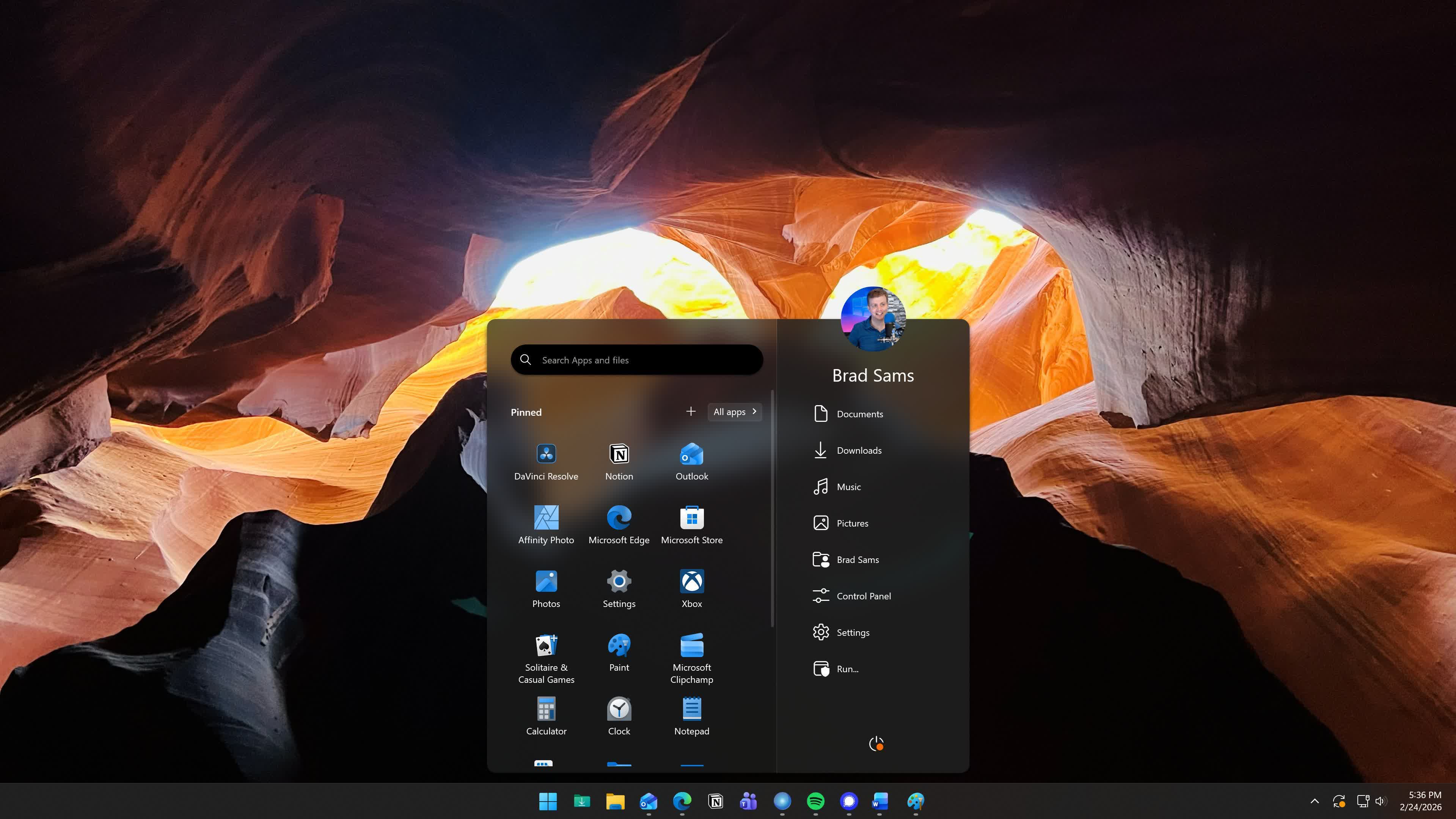
Microsoft introduced new taskbar features in Windows 11 26H2, but many users still want more control. Tools like StartAllBack and Windhawk help people restore classic layouts or add custom tweaks. These utilities let you change icon sizes, restore old menus, and fix the taskbar to suit your personal style.
Each new Windows release introduces changes designed to modernize its UI. However, you may miss the classic functionality of an earlier Start menu and taskbar, which many users still prefer. A variety of utilities exist to restore these traditional UI elements while expanding customization options.
Microsoft has reintroduced the ability to move the taskbar to the top and to the sides in Windows 11 26H2, and there's a new smaller taskbar option, too, but native settings are still limited if you want total customization. Below is a curated selection of widely used utilities that allow you to restore classic Windows navigation or transform the desktop layout into a dock-based experience similar to macOS.
Windows UI Restorers
These utilities rebuild or replace the native Windows taskbar and Start menu to restore legacy navigation, menu layouts, and system tray functionality.
StartAllBack
StartAllBack is a lightweight, low-overhead utility for modifying the Windows 11 taskbar and Start menu. It allows you to align the Start button to the left while keeping app icons centered. It also restores classic system tray flyouts for volume and network settings, as well as full right-click context menus.
The default Windows 11 Start panel is replaced with a classic two-column layout featuring pinned shortcuts on the left and quick links to system locations on the right. It connects with native Windows search for launching local files without web search clutter.
For visual tweaking, StartAllBack provides controls for icon sizing, taskbar padding, and "Never Combine" button labels. Advanced styling options include acrylic blur effects, dynamic auto-hiding for maximized windows, and segmented taskbar layouts. StartAllBack is available for $5 after a 100-day trial period.
Windhawk
Windhawk takes a different approach from traditional all-in-one Windows tweaking tools. Instead of overhauling the interface, it works as a platform for small, community-made mods, so you change only what bothers you and leave the rest of the Windows UI alone. It's free, open source, and comes from the developer of 7+ Taskbar Tweaker, a longtime favorite from the Windows 7 and 10 days.
Using it is a lot like browsing an app store. Open the Mods section, search for what you want, and click install. Each mod page shows how many people use it along with user ratings, which makes it easy to spot the reliable ones.
Popular taskbar mods include text labels for taskbar buttons, a multirow taskbar, the classic right-click taskbar menu, and Windows 11 Taskbar Styler, which lets you restyle nearly every element of the taskbar.
Windhawk also has mods for moving the taskbar to the top or sides of the screen, though 26H2 now handles that natively. Because mods hook directly into Explorer, a faulty one can occasionally break the taskbar after a Windows update. When that happens, disabling the offending mod in Windhawk usually fixes it.
Start11
Start11 combines legacy Windows interface restoration with enhanced multi-monitor productivity tools and expanded visual customization. It's developed by Stardock, renowned for its wide library of Windows UI modification utilities.
Start11 provides seven customizable Start menu styles: Windows 7 (classic two-column setup), Modern (Windows 7 layout with rounded Windows 11 visuals), Windows 10 (tile-based menu groups), Windows 11 (expanded launcher layout without recommended content sections), plus three newer designs called Windows App, Windows Pro, and Windows Launcher. The Windows 7 and Modern styles also offer compact and grid variations.
Unlike StartAllBack, it works on both Windows 10 and Windows 11.
This utility offers extensive taskbar controls, such as files and folders pinned directly to the taskbar, top-of-screen alignment across multi-monitor configurations, and uncombined window buttons with visible text labels. Start11 includes a 30-day free trial, after which a single license costs $10.
ExplorerPatcher
This free, open-source utility injects a DLL into Explorer, the Windows shell process, to bring back a Windows 10-style taskbar on Windows 11. Earlier versions re-enabled the legacy taskbar code that Microsoft left dormant in Windows 11. Since that code was removed in version 24H2, ExplorerPatcher now relies on its own reimplementation of the Windows 10 taskbar.
ExplorerPatcher can restore the classic Windows 10 Start menu along with legacy system flyouts for volume, network, and clock controls. Additional features include uncombined window labels and a choice of Win 10 or 11 Alt+Tab window switching.
Because it leverages existing system libraries, ExplorerPatcher uses minimal CPU and RAM. However, since it hooks deep into the Windows shell, major Windows 11 updates can break some features, and some users have had to uninstall it before upgrading.
Open-Shell
If the Start menu is your main complaint and you don't want to pay for apps like StartAllBack or Start11, Open-Shell is the free way to fix it. It's the volunteer-run successor to the popular Classic Shell, and it's still actively maintained, with regular fixes for Windows 11 updates.
After installing, click the Start button and Open-Shell asks you to pick a style: a single-column classic menu, a two-column version, or a Windows 7-style layout. From there, right-click the Start button to open its settings, where you can swap in a custom Start button image, add a taskbar texture or color, and configure search, recent programs, and the shutdown button.
Open-Shell only replaces the Start menu, so it won't change taskbar behavior the way other tools above do. Its settings window also looks like it's straight out of 2010, but it's dense with options. Uninstalling it brings back the regular Windows 11 Start menu.
macOS-Style Docks and Secondary Bars
These applications replace or supplement the Windows 11 taskbar with customizable launch docks or secondary toolbars that are helpful for multi-monitor desktop setups.
MyDockFinder
If your goal is to make Windows look like a Mac, MyDockFinder is the most convincing option available. It recreates the macOS dock with smooth, GPU-rendered magnification and adjustable blur. It also adds a macOS-style menu bar, a Launchpad-like app grid, hot corners, and Stage Manager-style window view.
MyDockFinder is sold through Steam ($5), which also handles updates and gives you access to a Workshop of community-made skins and icon packs. Keep in mind that MyDockFinder is the work of a single developer and runs as its own layer on top of the Windows desktop rather than integrating with the shell.
If you'd rather not pay, Seelen UI is a newer, free, open-source alternative with a macOS-style dock that can sit on any screen edge. Seelen adds a customizable top status bar, an app launcher, live wallpapers, and an automatic tiling window manager.
It doesn't match MyDockFinder's eye candy, but it offers a ton of control over how your windows and desktop are organized. Seelen UI uses Microsoft Edge's WebView runtime to work.
Nexus Dock
Nexus is the veteran of this group and still the most feature-packed dock you can get for Windows. It can sit alongside the regular taskbar or replace it entirely, with running apps and system tray icons shown right on the dock. The default setup won't immediately get you an elegant macOS-like dock experience, but it's very customizable, so a bit of upfront work pays off.
Getting started is easy: drag apps, files, or folders onto the dock to pin them, then click the dock's control icon to open its settings. That's where it gets busy. Nexus ships with more than 30 mouse-over effects, skins, icon reflections, and built-in widgets for CPU and RAM usage, network activity, weather, and more. If all you want is a clean macOS-style dock, expect to spend a few minutes switching things off.
The free version is limited to a single dock and personal use. Nexus Ultimate ($30, with a 30-day trial) adds multiple docks and sub-docks, tabbed shelves, drawers, and grid stacks that pop open a folder's contents.
Linkbar
This free, open-source portable utility creates secondary toolbars and shortcut bars on Windows 10 and Windows 11 without altering the main system taskbar. It restores the functionality of the legacy Quick Launch and taskbar toolbars, which Windows 11 removed, by linking each bar to a local folder containing shortcut files.
You add shortcuts by dragging files, folders, or URLs onto a toolbar. Linkbar supports custom icon sizing (16px to 256px), adjustable margins, acrylic background styling, and auto-hide behaviors.
Multiple toolbars can be anchored to different edges across connected displays, making Linkbar well suited for dedicated launchers on secondary screens.
Like ExplorerPatcher, Linkbar has a slight learning curve. When you create a new bar, you select or create a folder that will store its data. Then you right-click the bar to add shortcuts, which can launch programs, documents, or audio and video files. Once you understand the process, Linkbar becomes a versatile way to launch your apps and files without touching the taskbar.
Taskbar Makeovers
These utilities change the look of the Windows taskbar, from subtle transparency effects to a full retro makeover.
TranslucentTB
TranslucentTB is a free, open-source utility that applies transparency effects (clear, acrylic, blurred, or opaque) to the taskbar. These effects respond dynamically to what you're doing, such as maximizing a window or opening the Start menu. It's available from the Microsoft Store, which keeps it updated automatically.
RetroBar
RetroBar is pure nostalgia. This free taskbar replacement swaps the Windows 11 taskbar for a faithful recreation of the ones from Windows 95 through Vista, complete with the matching Start button, task buttons, system tray, and clock.
It's more than a skin, though. RetroBar brings back Quick Launch, lets you unlock the taskbar and drag it to any screen edge, and adds options like window thumbnails on hover, a Show Desktop button, and middle-click to close windows. Right-click the taskbar and select Properties to switch themes and features. On Windows 11, set the native taskbar to auto-hide before you launch RetroBar, or the two can overlap.
The utilities above let you fully tailor the Windows UI, whether you want to match the classic navigation of previous Windows versions or give it a look and feel closer to macOS. How do you like to mod your Windows 11 setup? Do you use one of these utilities, or is there another tool not listed that you prefer? Or are you happy with the Windows 11 taskbar now that 26H2 lets you move it around?