
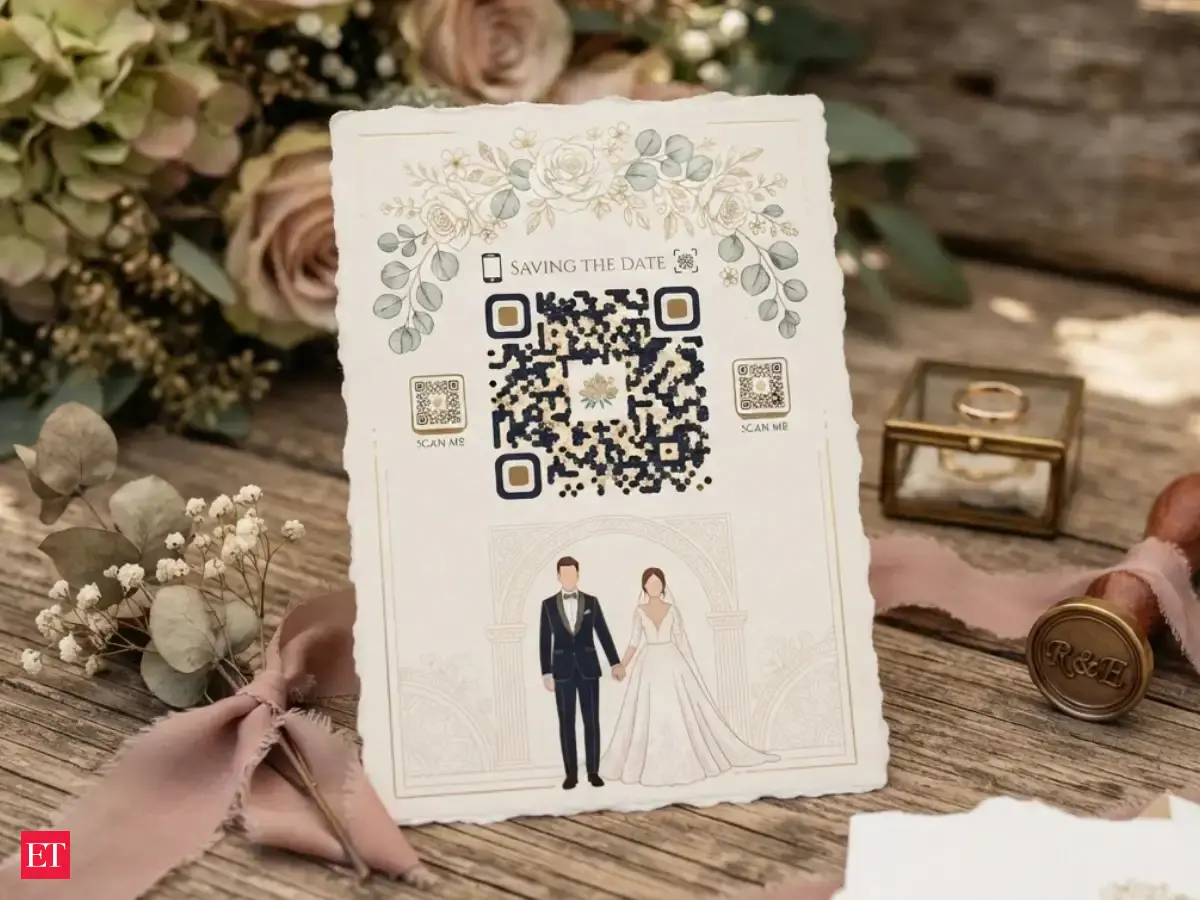
Couples are increasingly opting to include QR codes in their wedding invitations for guest convenience. These codes direct attendees to important information like venue locations, event schedules, and RSVP forms. Many couples now use online tools such as Canva to create these scannable squares, making sharing big-day details much easier.
Couples are increasingly opting to include QR codes in their wedding invitations for guest convenience. These codes can direct attendees to important information regarding event details and logistics. By scanning the QR codes, guests can easily access venue locations and RSVP forms. Various online tools, such as Canva and Google Forms, assist with QR code creation.
Wedding invitations have evolved beyond traditional printed cards, with many couples now looking for creative and convenient ways to share their big-day details with guests. One such option is adding a QR code to wedding invitations, allowing guests to access important information simply by scanning it with their smartphones. A wedding invitation QR code can direct guests to the wedding venue on Google Maps, provide event schedules, share RSVP forms, display dress codes and even offer access to photo galleries.
What Is A QR Code For Wedding Invitations?A QR code, or Quick Response code, is a scannable square-shaped code that stores information or directs users to a particular webpage, document or online link. For wedding invitations, couples can use QR codes to share multiple details with guests without adding lengthy information to the invitation card. Guests simply need to open their smartphone cameras, scan the code and follow the displayed link.
What Details Can You Share Through A Wedding Invitation QR Code?
* Wedding venue
* Date and time
* RSVP form
* Event schedule
* Dress code
* Accommodation details
How to create a QR code for wedding invitations using Canva?Open Canva: Visit Canva's official website and log in to your account.
Choose a wedding invitation template: Search for wedding invitation designs and select a template that matches your preferred theme.
Prepare your wedding information: Create a webpage or copy the link you want guests to access, such as a Google Maps location, RSVP form or wedding details page.
Find the QR code generator: Open the Apps section in Canva and search for the QR Code tool.
Enter your link: Paste the webpage URL or other destination link into the QR code generator.
Generate the QR code: Select the option to generate the code. It will appear in your design.
Customise your invitation: Adjust the QR code's size and position so it fits naturally into your wedding card.
How to create QR code for wedding invitations using Google FormsOpen Google Forms: Visit forms.google.com and sign in using your Google account.
Create a new form: Select the blank form option and give it a title such as 'Wedding RSVP'.
Customise the form: Add your wedding date, a short welcome message and any other relevant information.
Get the form link: Click the Send or Share option.
Generate a QR code: Open Canva's QR Code tool or another QR code generator and paste the copied Google Forms link.
Download your invitation: Save the final design in a suitable format, such as PDF for printing or PNG for digital sharing.
Tips To Keep In Mind Before Sharing Your Wedding QR Code
* Test the QR code: Scan it using different smartphones to ensure that it opens the correct link.
* Check the link permissions: Make sure guests can access the linked webpage, document or form without needing special login permissions.
* Maintain proper size: Avoid making the QR code too small, particularly on printed invitations.
* Avoid excessive decoration: Do not add too many design elements over the QR code, as they may interfere with scanning.
* Keep information updated: If you change the venue, timings or other wedding details, update the linked page or form.