
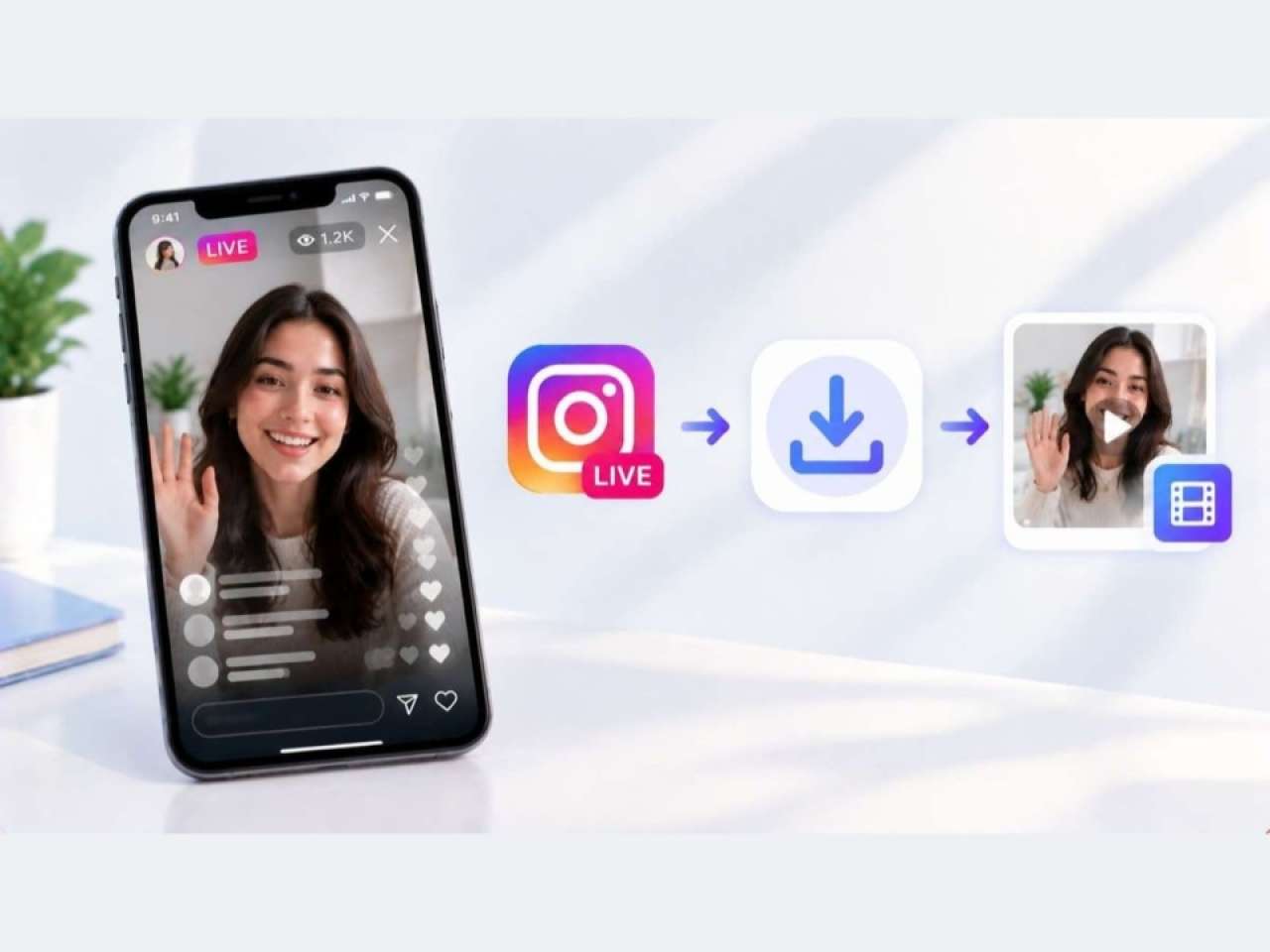
Instagram Lives are easy to lose once a broadcast ends. You can save public replays using the free tool Snapgram, which lets you download videos as MP4 files. Alternatively, use Instagram’s built-in archive feature for your own broadcasts or screen recording to keep a copy of any live session.
Instagram Lives can be saved using Snapgram for public replays, Instagram's built-in save/archive feature for your own broadcasts, or screen recording for live broadcasts, depending on your needs.
The best Instagram Live moments are also the easiest to lose. A creator shares a tutorial, an interview, or a surprise announcement, the broadcast ends, and suddenly you cannot find it anywhere. If you have ever wished you could rewatch a Live or keep a co py, a good Instagram video downloader can solve part of the problem, and Instagram and your own device can cover the rest.
People save Lives for practical reasons. Some want to rewatch a class or a product demo and take notes, some are creators who need a backup of their own broadcast, and others want to keep a memorable conversation before it disappears. The tricky part is that Instagram does not make this simple, and the right method d epends on whose Live it is and when you act. Below are three free ways to do it, from the highest quality option to the most flexible one.
Option 1: Save Instagram Live Videos Online with Snapgram
Snapgram is a free, web-based video downloader that saves Instagram videos to your device without a login. You copy a link, paste it into the search box, and download the video as an MP4 file. One thing to understand up front: no downloader can capture a broadcast while it is still airing. The method works once the Live has ended and the replay has been published as a public post or Reel, because at that point it has a link that Snapgram can read.
That limit is not a flaw in the tool. It is how Instagram works, and any se rvice that promises to grab a live stream in real time is overpromising. What Snapgram does well is turn a published replay into a clean, portable file that you fully control.
Key Features :
* Original Quality Files: The MP4 comes straight from Instagram's servers without extra compression, so it looks like the source video instead of a re-recorded copy.
* No Watermark: Downloaded live videos carry no watermark and no added username, which makes them easy to reuse for p ersonal reference.
* No Login Required: You never enter your Instagram password, so your account stays out of the process.
* Works for Any Public Replay: You are not limited to your own broadcasts. Any publicly posted replay can be saved, which Instagram's own download option cannot do.
* MP3 Audio Extraction: Pull out only the audio, which is ideal for interviews, talks, and music sessions you would rather listen to later.
* Any Device, Unlimited Use: Runs in the browser on Android, iPhone, and desktop, and downlo ads are free with no daily limit.
For the file format, Snapgram's instagram to mp4 tool converts the video to a standard MP4 that plays on nearly every phone, laptop, and TV, so you do not need s pecial software to watch it.
This approach is especially handy when you are not able to watch live. Many creators post their replays afterward, and a saved MP4 lets you watch offline on a flight, trim the parts you care about, or store lessons and talks in your own library instead of relying on an app feed.
How to Download a Live Video from Instagram Easily? Once the replay is posted, the whole process takes about a minute:
Step 1, Copy the link.
Open the replay in Instagram, tap the Share button, and choos e Copy Link. If you are using a computer, copy the address from the browser bar.
Step 2, Paste it into Snapgram.
Open Snapgram in your browser and paste the live video link into the search box. If the page shows an error, make sure the post is public and the link is complete.
Step 3, Preview and download.
Check the preview, choose the video or audio option, and tap Download. The file lands in your phone gallery or your computer's downloads folder.
Option 2: Download Live Videos on Instagram
Instagram has its own way to keep a Live, but it is meant for the person who hosted the broadcast. As a viewer, you have no download button for someone else's Live, so this option applies only to your own streams. If you are the host, it is the simplest ro ute because everything happens inside the app.
Save Immediately After the Broadcast. When you end your Live, Instagram shows an option to save the video to your device before you close the screen. Tapping it downloads the broadcast to your phone, so you wa lk away with a file right away. Do this straight after finishing, because the prompt is easy to dismiss and it is the quickest way to guarantee you have a copy.
Enable Auto-Archive (Save for Later). If you would rather not decide at the moment, turn on arc hiving. In your settings, look for the Live options and make sure the setting to save your Live to the archive is switched on. It is often on by default, but it is worth checking. Later, open your Live Archive, pick the broadcast, and use the download opti on to save it to your device. Archived Lives are kept for a limited time, usually around 30 days, so check the date shown in the app and download before it runs out. A short processing delay after the broadcast is normal.
To find the archive, open your pro file, tap the menu, and look for Archive, then choose Live Archive. The exact labels can shift between app versions, so follow whatever your own app shows. Once you have a file on your phone, it is worth copying it to cloud storage or your computer as a se cond backup.
The advantages and drawbacks of this method:
* Official and Free: Built into Instagram, with no third party site and no extra steps.
* Good Video Quality: You get the version Instagram stored, not a re-recording of your screen.
* Host Only: It works only for your own broadcasts, so viewers cannot use it.
* Limited Storage Window: Archived Lives expire after a set period, so you have to remember to save them.
Option 3: Screen Recording Instagram Live Videos
Screen recording is the only method that works while a Live is happening, and it works on anyone's broadcast. Both iPhone and Android have a built in screen recorder, and on a computer you can use tools such as QuickTime on a Mac or OBS on Windows. Start the recording, open the Live, and stop when it ends. Before you begin, turn on microphone or system audio capture if your device asks, or the video may come out silent. It costs nothing and needs no extra account, which is why it remains the fallback when every other route is closed.
It is flexible, bu t it comes with trade offs :
* Works on Any Live: You can capture someone else's broadcast as it happens, which no other free method offers.
* Reduced Quality: The recording depends on your screen and gets compressed, so it rarely looks as sharp as the original.
* Extra Clutter: Comments, hearts, and notifications can end up in the video unless you crop or use the desktop view.
* Time and Storage: You need to stay w ith the broadcast from start to finish, and long recordings take up a lot of space.
* Easy to Miss: If you start late or a call interrupts the recording, that part of the Live is gone.
A few habits make recordings much better. Switch on Do Not Disturb so ale rts do not appear on screen, hold your phone in portrait mode to match the broadcast, and charge your device first, since a long Live drains the battery quickly. On a computer, watching on the desktop site can keep comments to one side so they are easier t o crop out.
If you plan to share or reuse the footage, ask the creator first. Recording makes it easy to copy content that was not meant to be redistributed, so respect their rights and keep it for personal use unless you have permission.
The Final Thought s
All three methods have a place. If you are the host and want a quick backup, Instagram's save and archive options are the easiest. If you need to capture a Live as it airs, screen recording is the only choice, though you will accept lower quality and som e clutter. Think about what matters most to you: sharpness, convenience, or timing. Each method trades one of these for another, and knowing the difference saves you time and frustration the next time a Live you care about starts.
Here is a quick way to ch oose between them:
* Own Broadcast, Want a Backup: Use Instagram's save and archive options.
* Missed the Live, Replay Is Public: Use Snapgram to save the replay as an MP4.
* Need to Capture It as It Airs: Use screen recording, and accept the lower quality.
For most people, though, Option 1 is the one to recommend. Snapgram gives you a clean, original quality MP4 without a watermark, without a login, and without sitting through the whole broadcast. It also works on any public replay, not only your own, and it lets you keep just the audio when that is all you need. The only requirement is that the replay has been published, which is a small trade for a file that looks good and plays anywhere. Save the replay link, paste it into Snapgram , and keep the Live you d id not want to lose.